Since versions of 1.20.5 and higher, Minecraft started to require Java 21. After Minecraft v26.1, the Java requirement got boosted to Java 25.
Java 25 has added some experimental command line arguments which make the game run a bit smoother.
Here's how you can take advantage of them.
The command line arguments I'm talking about, of course, are:
-XX:+UseZGC -XX:+UnlockExperimentalVMOptions -XX:+UseCompactObjectHeadersIn technical terms, what it does, is that it enables a different newer version of the garbage collector, as well as a different object representation format.
It doesn't mean too much normally, but in a scenario where you're, for example, playing modded minecraft and the mods are constantly using the memory to the point where it quickly runs out of it, it cleans up the memory in a smoother way, thus making the game freeze less if it's constantly running out of memory.
In addition to that, the compact object headers make the game just a bit more efficient at using the memory.
The only problem is that if the game is expecting Java 21, you may get some complaining from your launcher, which is what I'm gonna talk about next.
How do I do the thing??
Let's start things off by fetching an installation of Java 25. For this, I recommend using the GraalVM build of Java specifically, as it's a slightly different version of Java which can be a bit more efficient at running the game than OpenJDK (the version of Java used by most things.)
Step 1: Install Java 25.
If you can deal with the GitHub interface, you may go to the release page of GraalVM on GitHub, and fetch it from one of the releases, or alternatively, the convenience links in the very convenient table.
I have a very convenient table of my own, though, ⬇️
| Platform | Java 25 |
|---|---|
| 🪟 Windows (x64) | Download ⤵️ |
| 🍏 MacOS (aarch64) | Download ⤵️ |
| 🐧 Linux (x64) | Download ⤵️ |
| 🐧 Linux (aarch64) | Download ⤵️ |
After you download the archive, you need to extract it in a place that's not too important but not too unimportant.
Step 2: Launcher setup.
1. Modrinth.
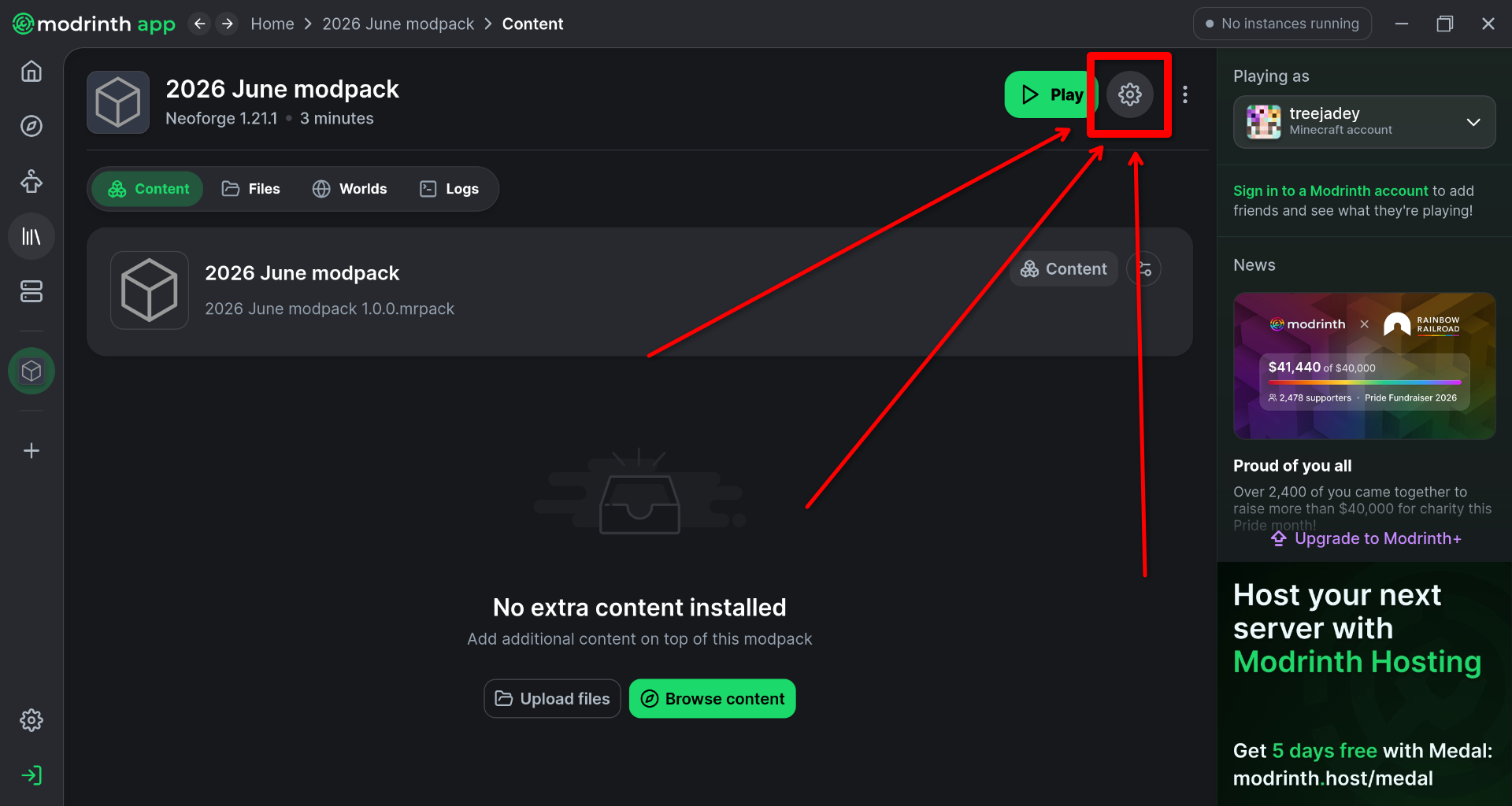
Go into the settings of your instance:
And then in the Java and memory option, enable the Custom Java Installation, and find where you extracted that Java archive, go into the bin folder within it, and select the java executable (java.exe on Windows)
It may give you a red X, but it doesn't mean that it won't work just yet.
Enable the Custom Java arguments, and insert the following into it:
-XX:+UseZGC -XX:+UnlockExperimentalVMOptions -XX:+UseCompactObjectHeaders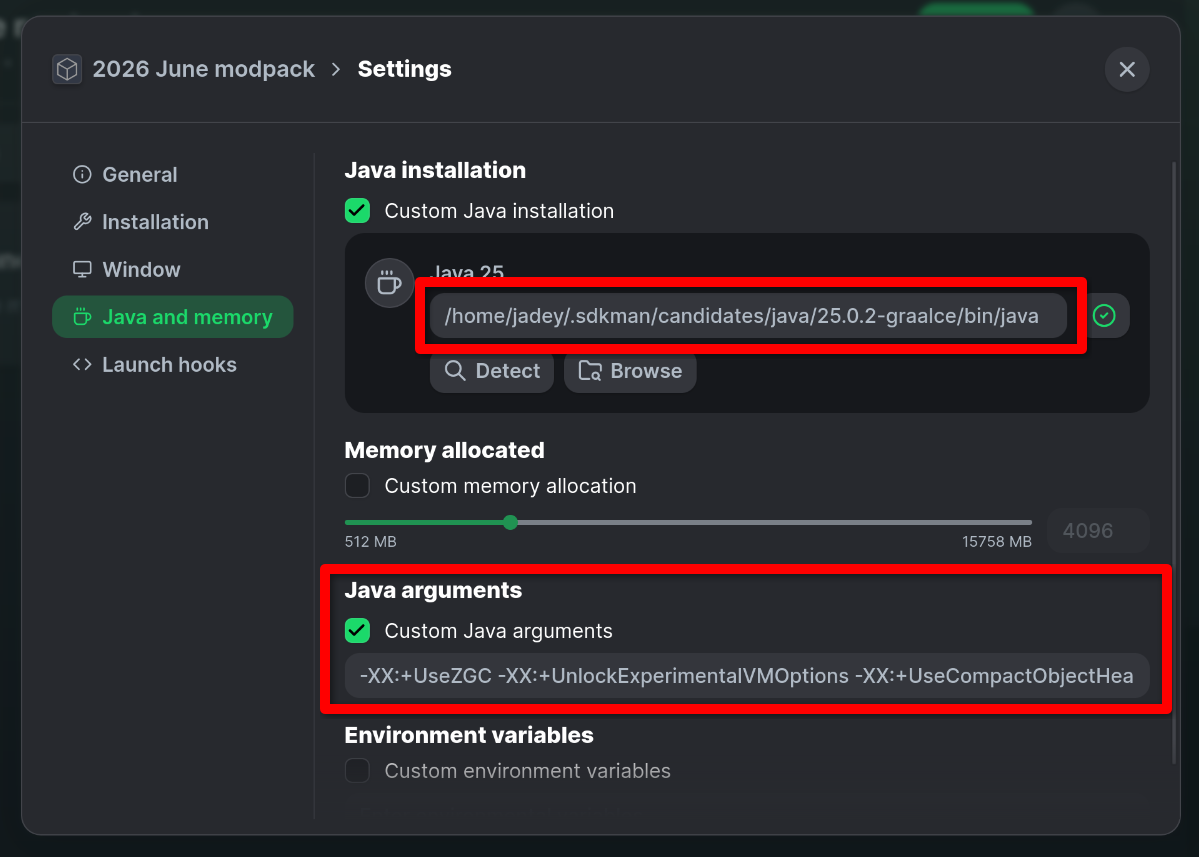
After this, you can try launching the game and it should hopefully work.
If it doesn't work, try making sure you're pointing at the right executable.
2. Prism Launcher.
Right click on your instance, select edit, and then go in the Settings tab in the side panel.
After that, select the Java tab in the settings.
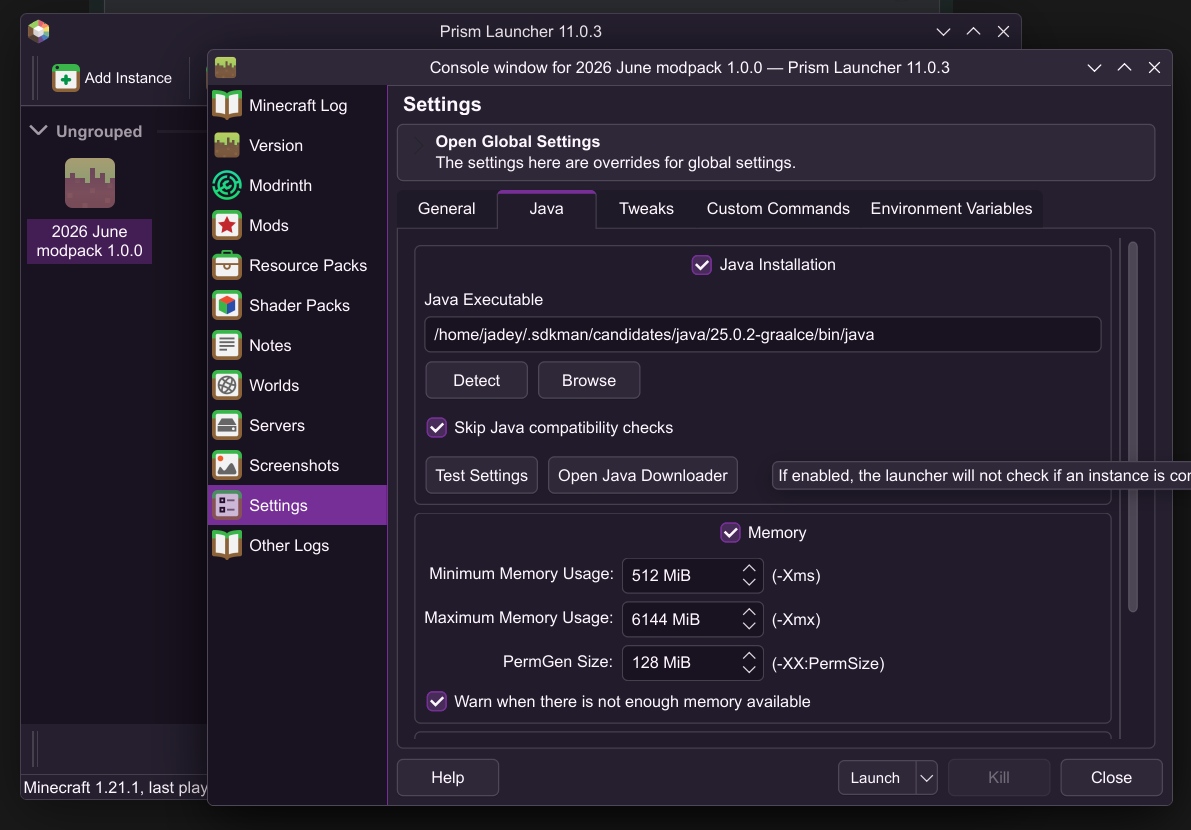
Afterwards, either press browse on the Java Executable section or type in the path to the java (or java.exe) file manually.
It is located within the bin folder in the archive you extracted earlier.
Make sure to check to disable the "Skip Java compatibility checks" option.
You can try pressing "Test Settings" after you select the java executable to make sure it works.
Afterwards, scroll down, check the "Java Arguments" option below, and put in the command line arguments into it:
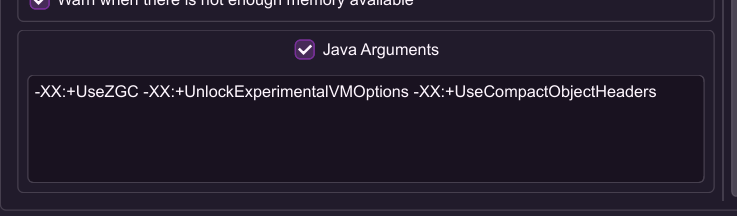
-XX:+UseZGC -XX:+UnlockExperimentalVMOptions -XX:+UseCompactObjectHeadersAfterwards, make sure to try to launch the game and see if it works.
If it doesn't, make sure the path to the executable you're pointing to is correct.
Have fun!